Step-by-Step Guide: Setting Up Your Template on Systeme.io
This guide will walk you through the essential steps to set up and customize your Simple One Site template on systeme.io
Each step is designed to be simple and intentional, so you can move forward with clarity and confidence.
Before we start
To make the process seamless, ensure you have your branding materials ready. We highly recommend completing our Google Doc: SITE CONTENT WORKBOOK first.
It provides the exact visual and text requirements you need. Once filled out, you can simply "copy and paste" your content into the editor for a much faster setup.
Step 1 — Create Your Systeme.io Account
Before importing the template, you must set up your environment:
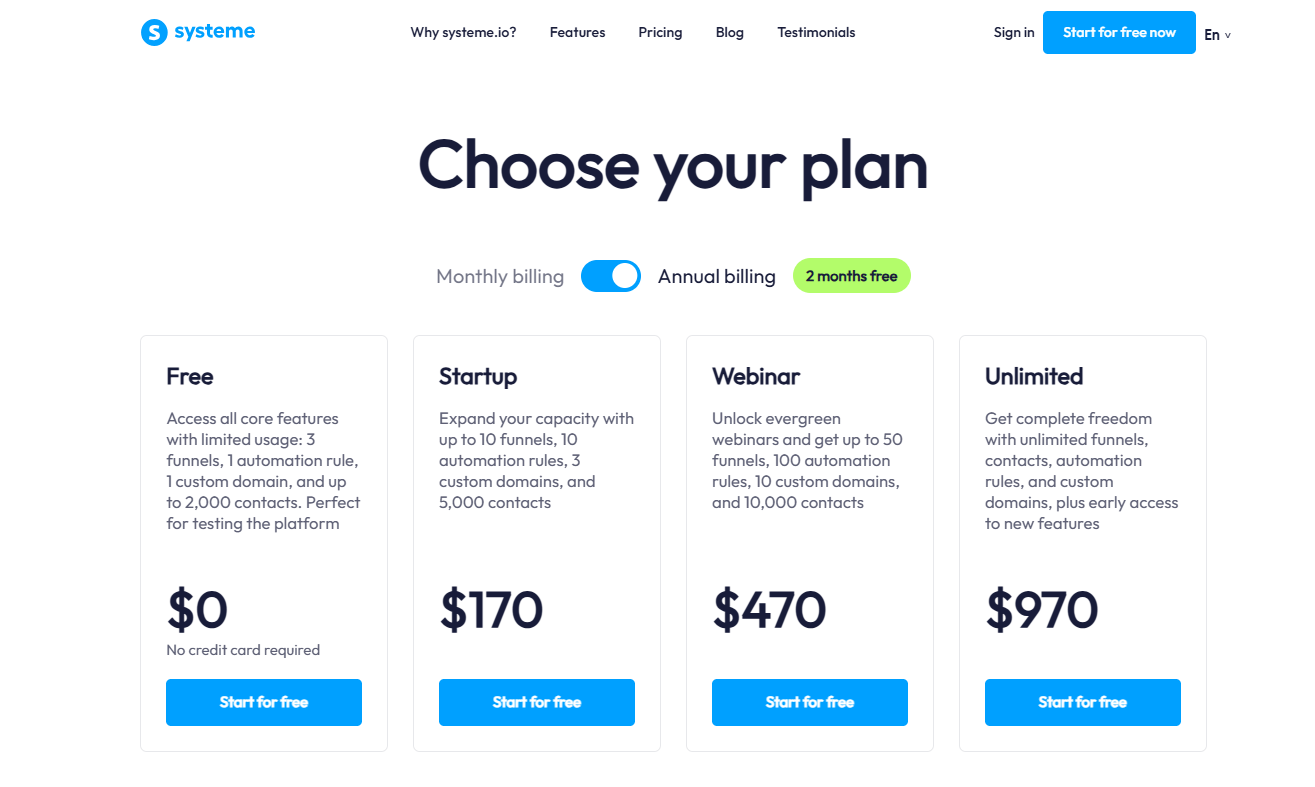
1 - Register for your account: Click the button below to view the plans and sign up.
💡 Pro Tip: By using the link above and choosing Annual Billing, you will get 2 months for free. This is also the best way to remove the systeme.io badge and give your site a 100% professional look.
2 - Confirm your email address: Check your inbox and click the verification link sent by the system to activate your profile.
3 - Workspace Readiness: Once confirmed, your workspace is now ready to host and manage your websites
Step 2 — Import Your Template in just one click
To add the design to your dashboard, follow the import protocol:
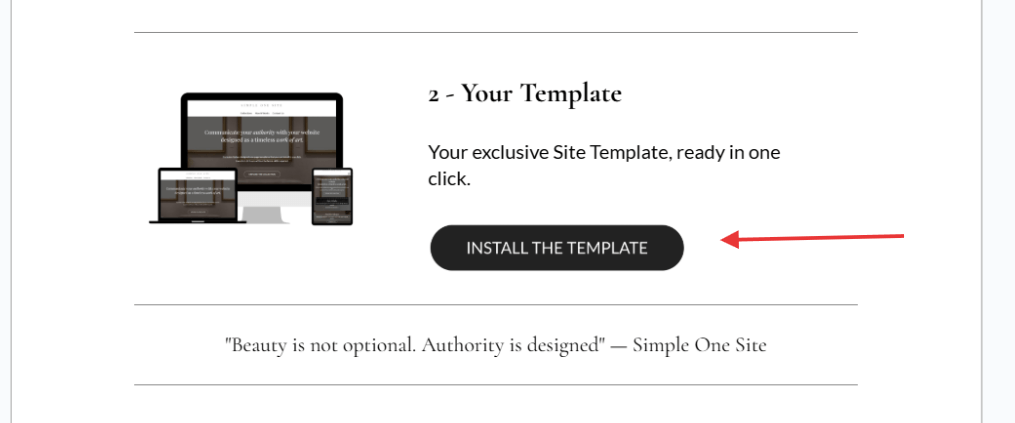
1 - Access the Link: Click the template access link provided in your purchase confirmation.
To add the design to your dashboard, follow the import protocol:
1 - Access the Link: Click the template access link provided in your purchase confirmation.
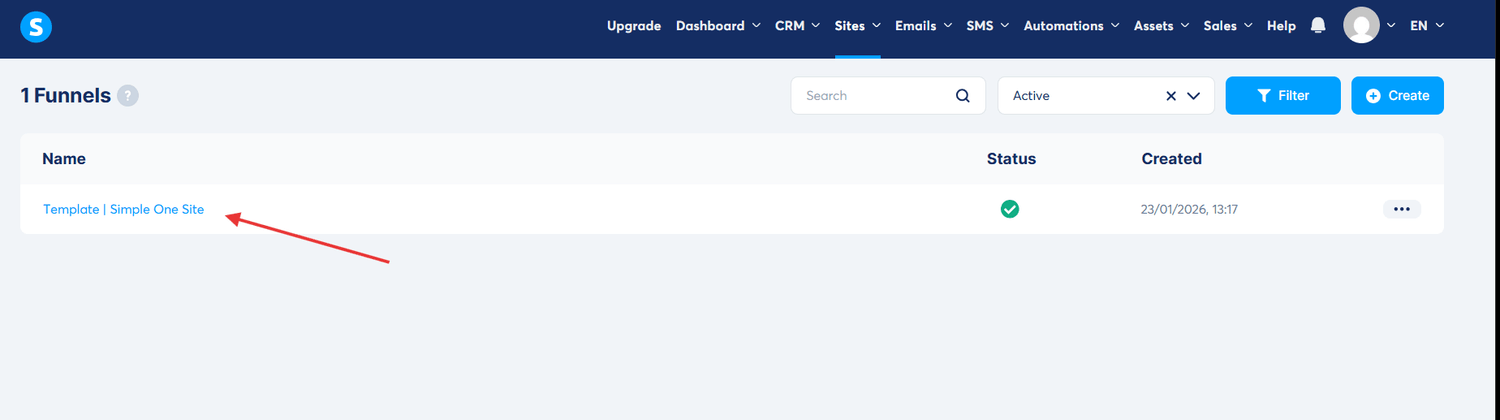
2 - Monitor Import Status: You will be redirected to the Funnels section.
Yellow Indicator: This means the template is still loading. If this persists, refresh the page and wait a few seconds.
Green Indicator: This confirms the import was successful.
If you leave the page and want to access your website again later, go to Sites → Sales Funnels to locate your Template.
Step 3 — URL Optimization (One Page Site & Legal)
To ensure a professional appearance and better SEO, you must clean the automatically generated URL paths:
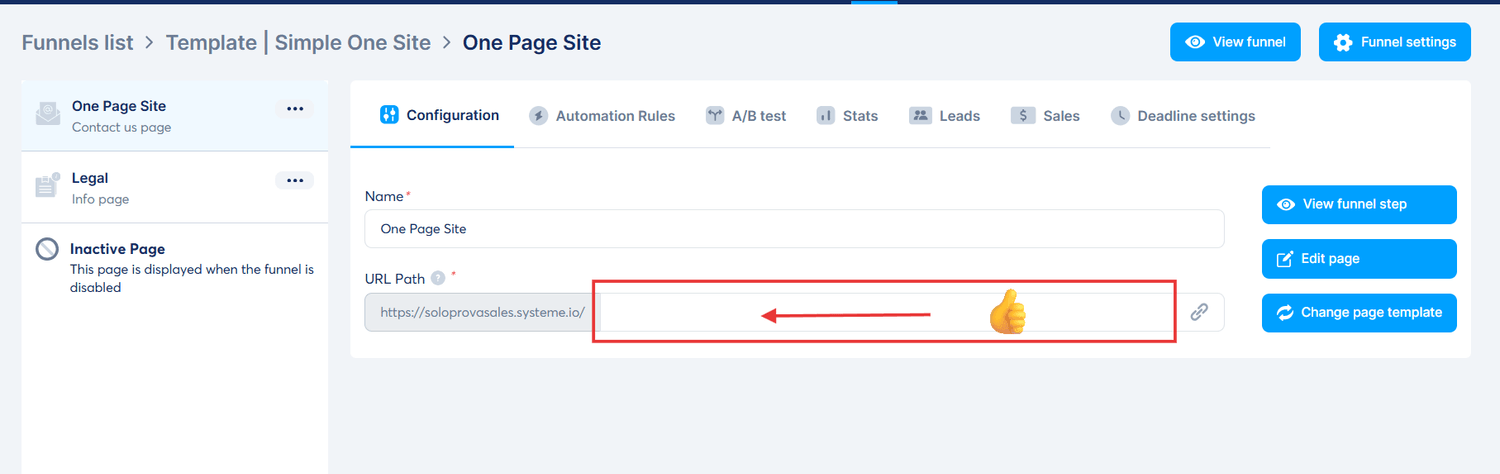
1 - Main Page (One Page Site):
Select the page currently labeled with a generic path (e.g., /template-1245c67).
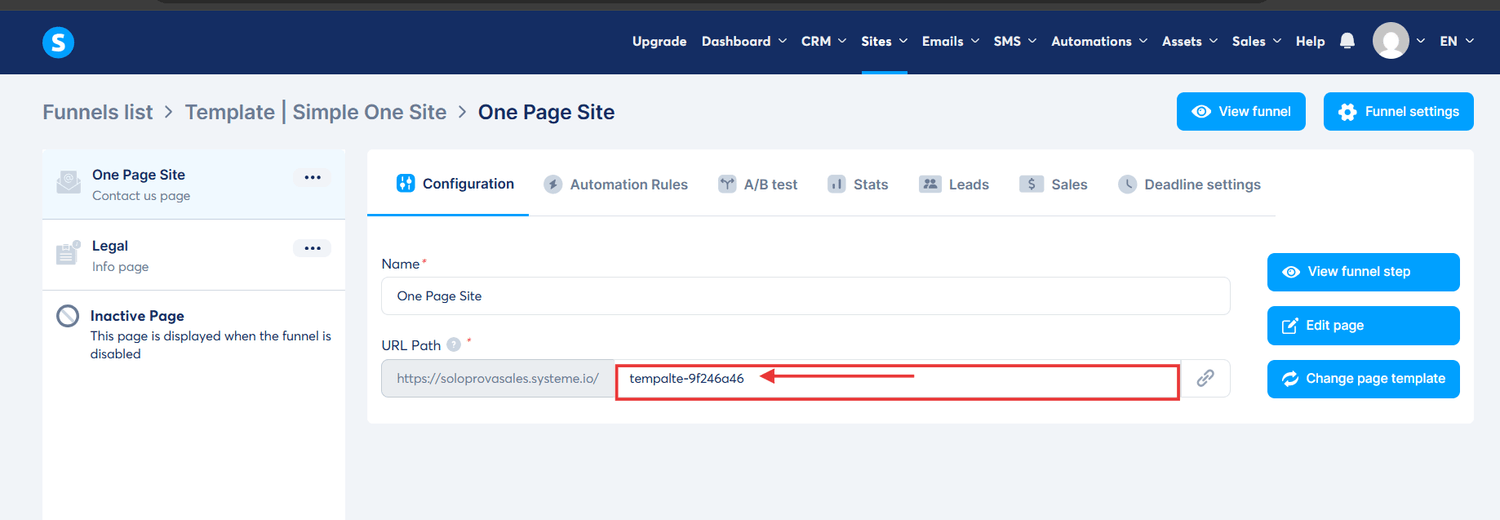
In the "URL Path" field, delete all text and leave it completely blank. This ensures your site loads directly at your root domain (e.g., ://www.yourdomain.com).
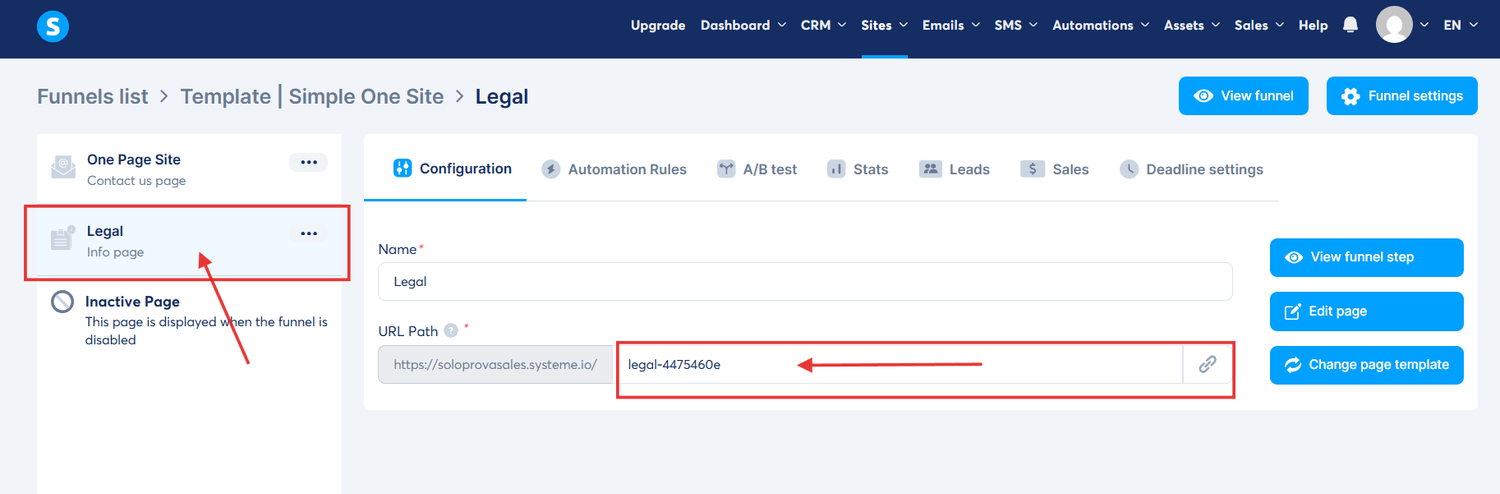
2 - Legal Page:
Select the second page (e.g., /legal-12345c).
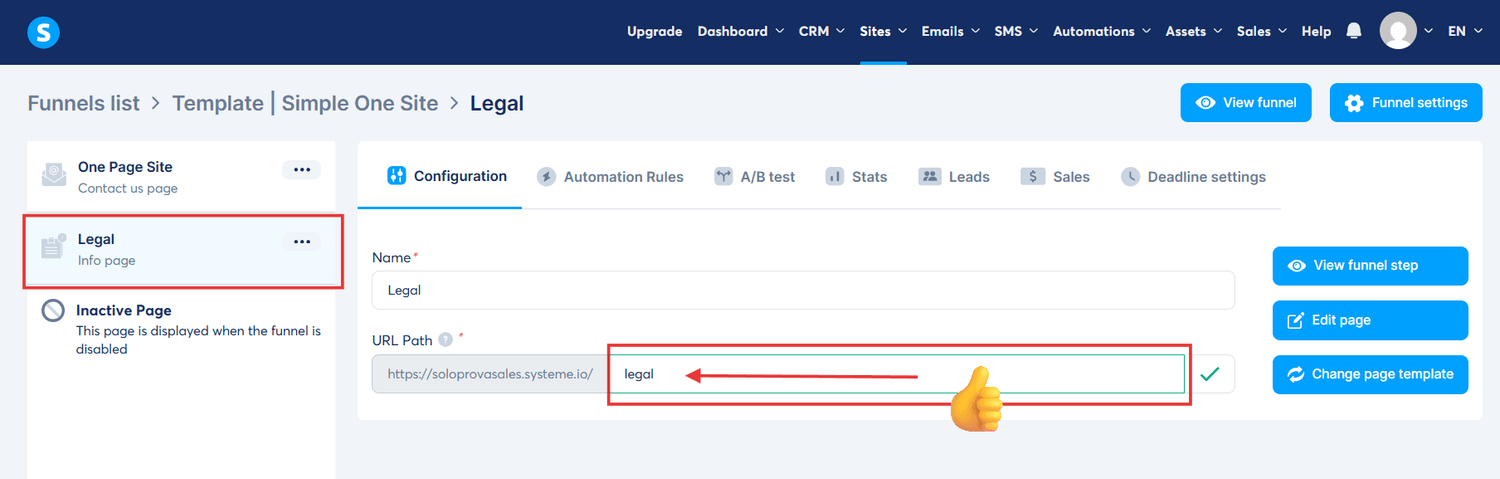
In the "URL Path" field, change the text to simply /legal
Step 4 — Customize Your Content
Access the visual editor by clicking the "Edit page" button to personalize your content
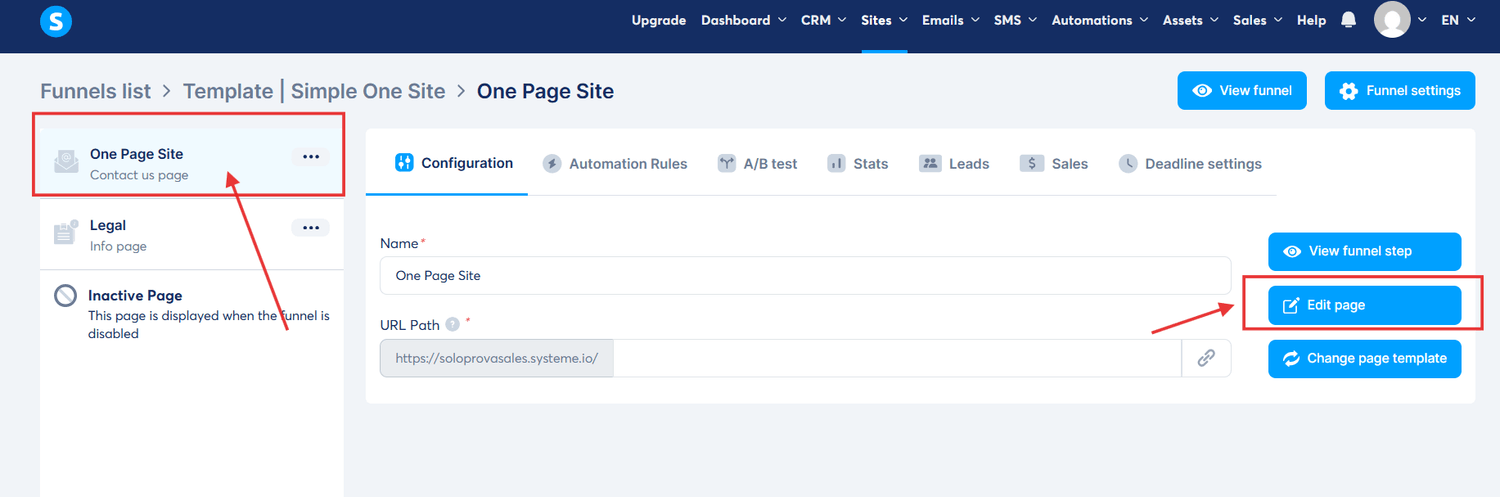
Visual Editing: Use the drag-and-drop interface to update text and image
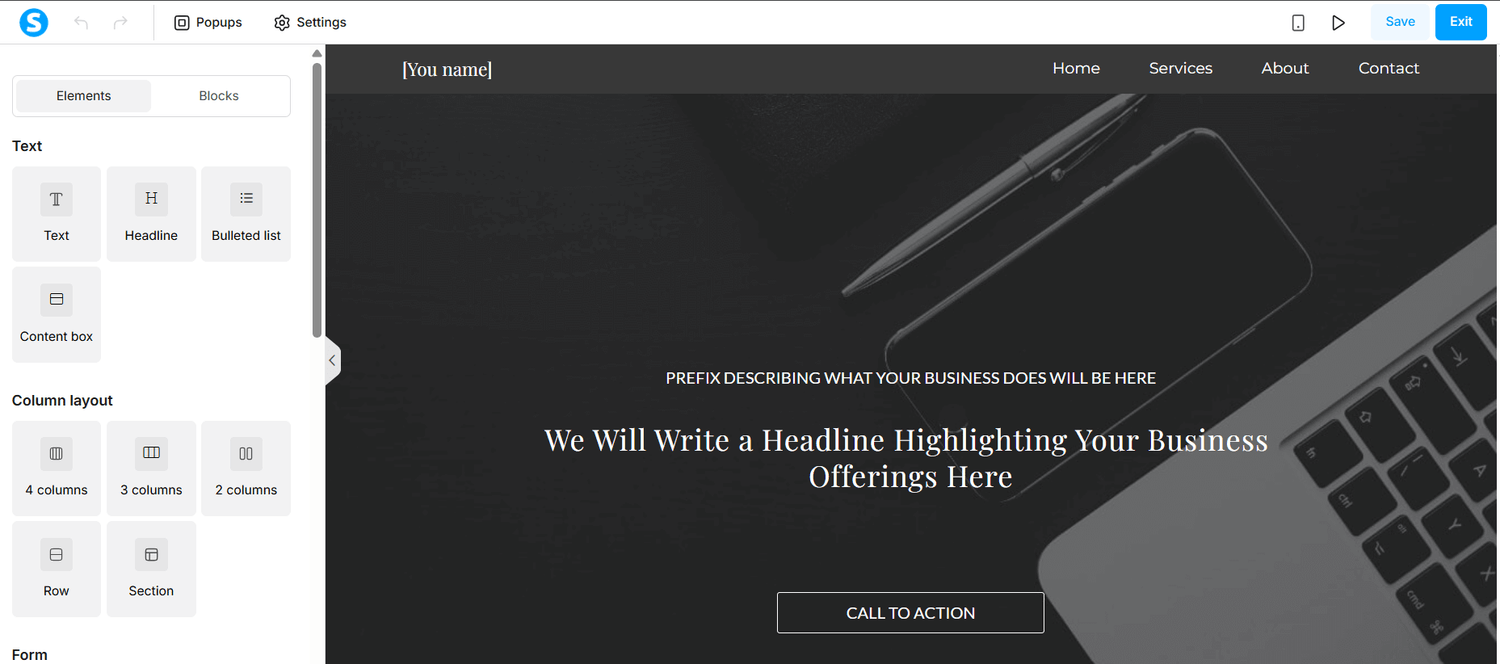
Technical References: If you need specific help, refer to the official guides on adding images and configuring buttons.
Helpful guides:
Customize thoughtfully to preserve the elegance and structure of the original design.
Step 5 — Domain Setup (Recommended)
Using a custom domain (e.g., www.yourname.com) is essential for brand authority and removing the "systeme.io" subdomain.
Follow the Official Domain Connection Guide to link your external registrar.
Additional Support
Systeme.io Help Center: